
I got so tired of typing my MetaVenture addresses every single time I needed to move a map asset to one of them. So, I built a Chrome plug-in to help me with the process.
Map Asset Move Helper DownloadThis IS NOT a certified Chrome extension, and you use it at your own risk.
After downloading the above files, unzip and place them somewhere on your machine that you will be able to find them. ie C:\Upland\MapAssetMoveHelper
Open the Chrome browser. On the top right, you’ll see three dots to “Customize and control Google Chrome.” Click that. Then select Extensions and Manage Extensions in the list that appears:
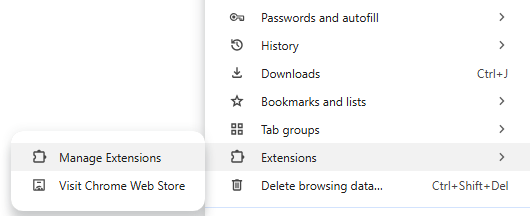
Now the manage extensions window appears. Select the option to Load Unpacked:
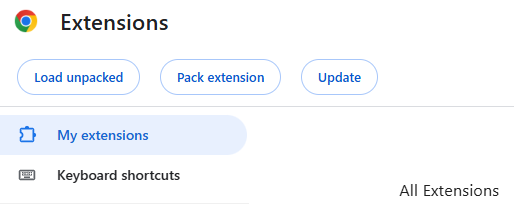
Browse to the folder than contains all the files you downloaded earlier and select it:
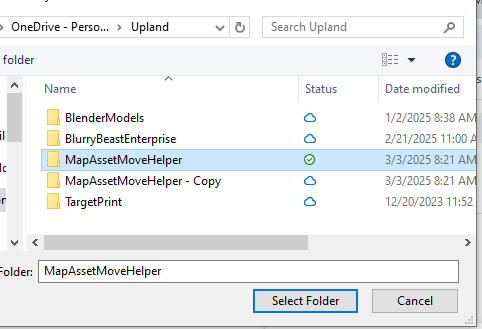
After clicking, “Select Folder”, the extension will be loaded. If everything went correct, you’ll now have the Blurry Beast logo in your extensions:

Now open Upland.Me
When first visiting, Upland after having the extension installed, one will see this:
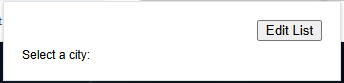
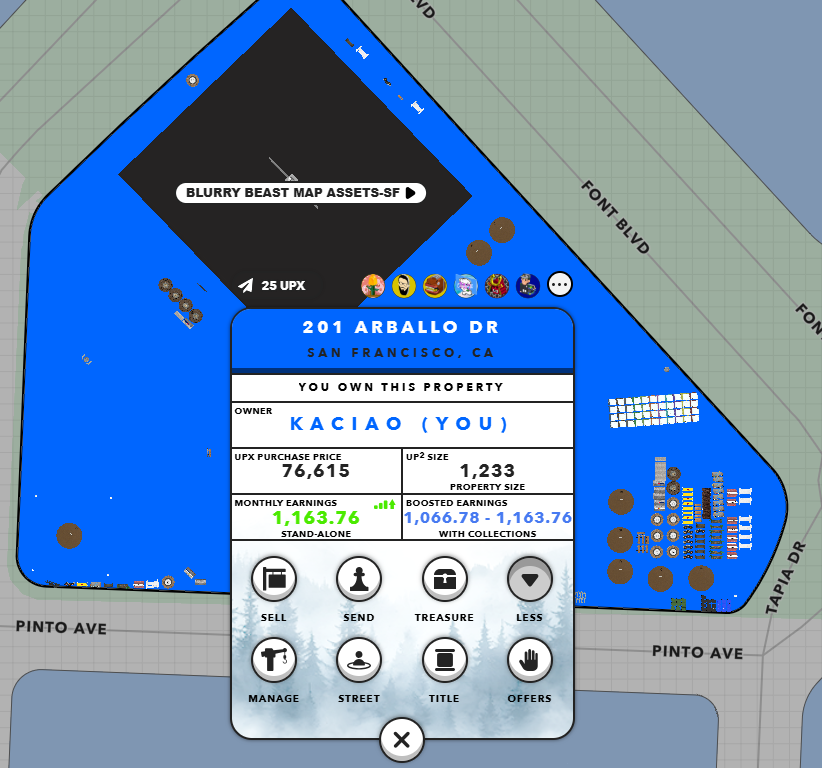
To begin using the extension, you’ll need to collect some preliminary data. I will use my MetaVenture located at 201 Arballo in San Francisco as an example. You can use any property that you want to move your assets to for this.
First, locate your property on the map. Then open the property card. Expand the “More” option so that you see the “Manage” button on the property card. Select the manage option.
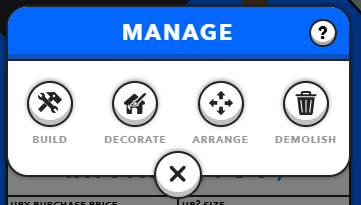
Once the Manage options window appears, select the “Arrange” option:
In the URL bar in your browser, it’s going to change to appear something similar to this:

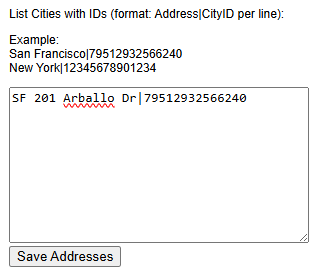
The number in the URL above “79512932566240” represents the property id of my MetaVenture property location. I need to make note of this number to use with Map Asset Move Helper. I’m going to make a note for this property as SF 201 Arballo Dr|79512932566240. The pipe character separating my address and property ID is found above the “enter” button on my keyboard.
Back in my Chrome extension, I’m going to click “Edit List” and paste this value in as follows and select “Save Addresses”:
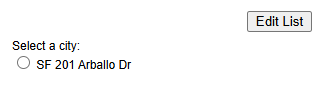
After selecting save, my list of properties that I can move assets to updates to look like this:
I have a complete list of all my properties that I like to move items to as follows:
- SF 201 Arballo Dr|79512932566240
- Bronx 2160 Matthews Ave|81464543506378
- L.A. 6407 10th Ave|77185144387195
- Miami 201 SW 17th Rd|72066735989631
- Chicago 7646 W Winona St|82160898198618
- Bakersfield 3401 Incline Dr|78064706662468
- KC 5603 NW Redhaw Ln|80453313065379
- NOLA 1417 Governor Nicholls St|74685809957465
- Tokyo 1-Chome-4-46 Mita|78225238854501
- Berlin 40B Kopenicker Strasse|88719264753477
- Porto Vereda Dona Maria Da Costa Basto 60|81633928091570
- Rio RUA MUNIZ BARRETO, 585|41743999783918
—-Structure Ornament—— - SF 1601 Selby St|79522478802914
- L.A. 4343 Stillwell Ave|77255893908672
- Chicago|82172625473119
—-Storage - SF Storage|79522596243465
So my list after I click save appears like this:
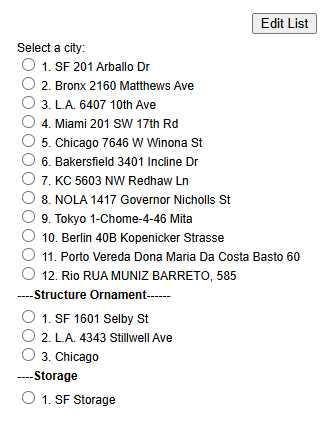
Now, I’m going to open one of my map assets by clicking on it on the map.
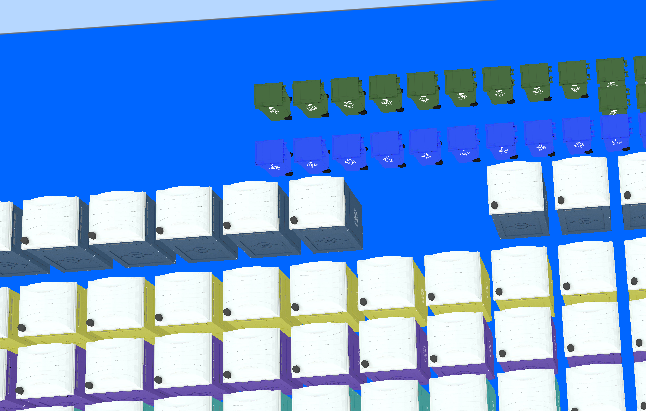
After clicking on my map asset, I get the screen below:
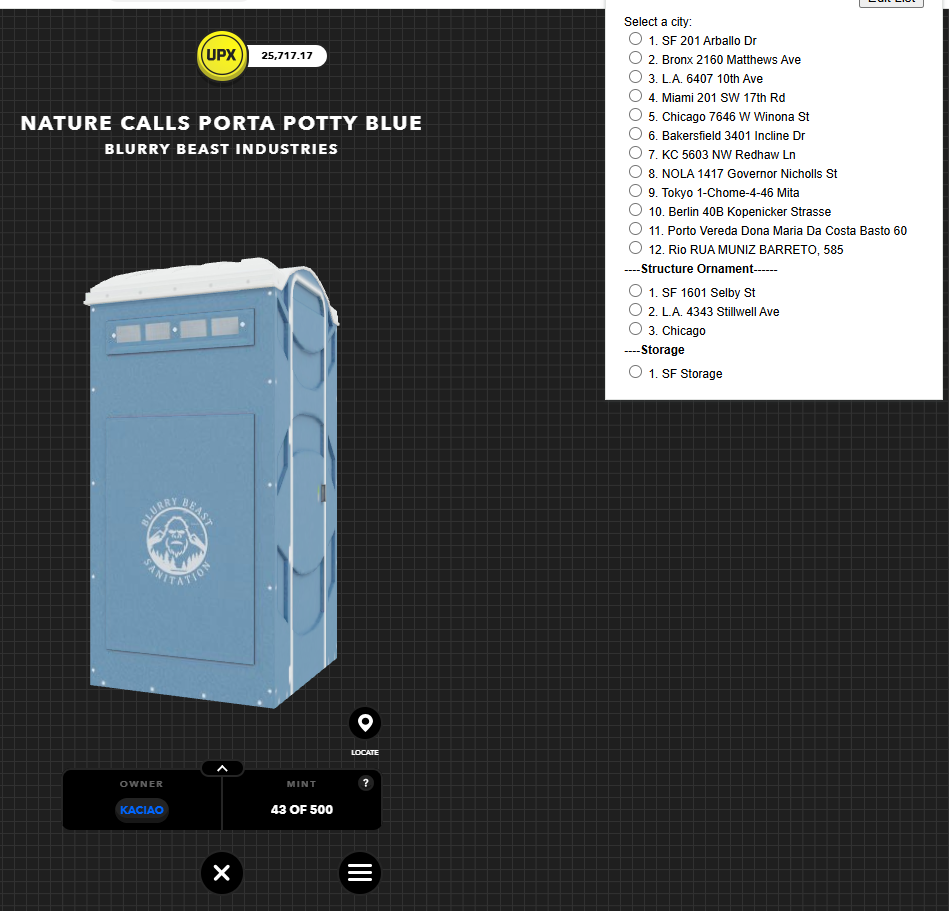
Now, I can simply click on one of the addresses from my list and finish by placing my map asset exactly where I want it to be. I know that this isn’t a perfect solution, as a perfect solution would allow me to select multiple map assets and align them perfectly very quickly, but this saves me several clicks and I thought I’d be nice and pass it along to anyone else who wants to use it.